
Data Access Hierarchy report allows someone with access to change an individual’s restrictions/access to what they see in the reporting system. The information below can be used for any of the hierarchies on the left side of the screen. Each program is individualized so it is important to know which hierarchies you use and how you filter within your reporting system to ensure the proper set up of your individuals. The most common Hierarchies are My Branch, Agent and Validity.
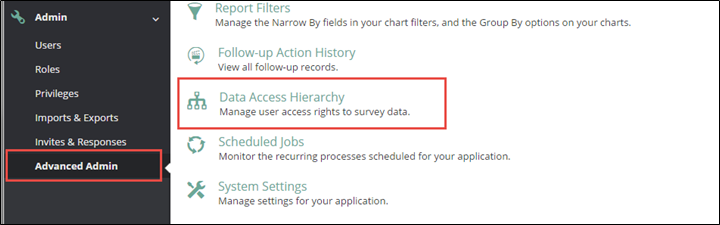
The Data Access Hierarchy can be found in the Admin/Advanced Admin menu of your reporting system:
To modify or add restrictions to an existing user account:
Go to Admin/Advanced Admin/Data Access Hierarchy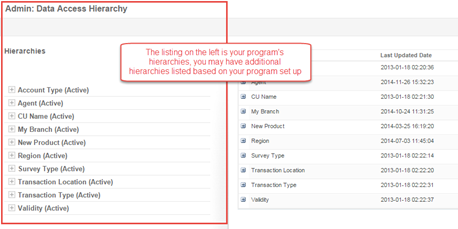
You will need to know which type of restriction you want to add. The most common restrictions are My Branch and Agent
The My Branch restriction will restrict a user to see only responses for a specific branch(s) or department. You may add more than one branch restriction to a user account.
The Agent restriction will restrict a user to see only responses for a specific agent/representative(s). You may add more than one agent restriction to a user account.
MY BRANCH
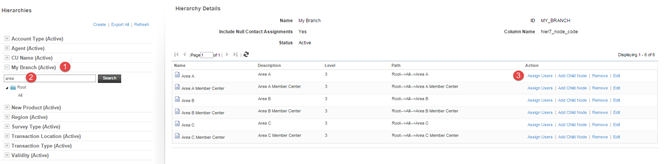
To assign a user to a specific My Branch node (see screen shots below). This will allow that user to see all responses for their branch or department.
- On the left hand side click on My Branch
- Search for the Branch/Department you want to add the User to
- Click on Assign Users
- Search for the user, then move from left to right column.
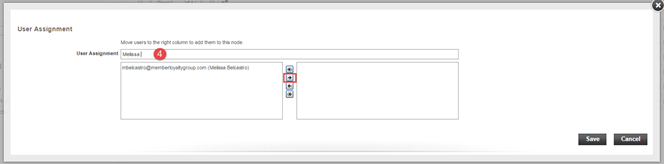
- Click Save
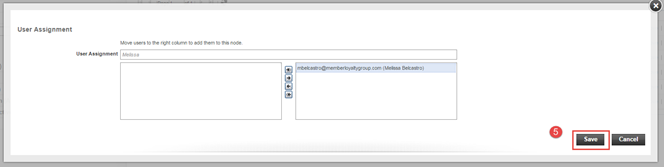
AGENT:
To assign a user to a specific Agent node (see screen shots below). This needs to be done if they need to see only their own survey response or responses for a particular Agent.
- On the left hand side click on Agent
- Search for the Agent/rep name you want to add the User to
- Click on Assign Users
- Search for the user, then move from left to right column
- Click Save
VALIDITY:
If you need to give a user Validity (you may need to do this if your user cannot see any data):
- Click on Validity
- Click on ALL
- In the YES field click on Assign Users
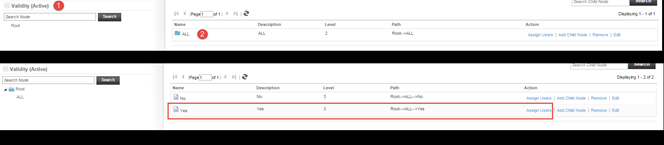
- Search for person and move them from left to right column
- Click Save
Comments
0 comments
Please sign in to leave a comment.