
You can easily share dashboards to collaborate with your colleagues.
To share a dashboard:
- Click the share icon in the top right. This will open the Share window.
- Choose the people you want to share with. You can share with single users or you can share with a role to share with everyone in that role.
- Set their permissions by choosing from the following:
- Owner - One user is the owner. This user has full access rights to the dashboard and can share with any user. Users who have shared dashboards will see that the dashboard is shared by the owner.
- Co-Owner - This user has full access rights to the view and can share with any user.
**** Any changes made by one Co-Owner will show on the Owner and other Co-Owners. Please be aware of this.****
If changes are needed, unless you want to change the chart for all Co-Owners, they can use the Pin icon to save a personal copy then make of their changes. This ensures that the shared dashboard isn't changed for others while giving them the ability to explore the data. - Editor - This user can edit and collaborate in the view but cannot share with additional users.
- Viewer - Viewers always see the same shared view each time they access the dashboard. However, they see the dashboard in Explore Mode, where they can filter and explore the data without affecting the dashboard for other collaborators.
- Personal Copy - You can give users their own personal copy of the dashboard. They are the owner of this dashboard and can edit it and share with others. Any changes you make to your dashboard in the future will not affect the personal copy of another user.
- Owner - One user is the owner. This user has full access rights to the dashboard and can share with any user. Users who have shared dashboards will see that the dashboard is shared by the owner.
- Optionally set this view as their default home page. Read more about Assigning Home Pages.
To be sure they see your shared dashboard, you may select the Send Email option to email them a link to your shared dashboard. Otherwise they will need to click the notifications icon at the top of the page and accept the share, or, depending on their role, it may simply appear in their left menu in Analytics or Dashboards. - Add a message for them to read when they receive your dashboard.
-
When you’re finished, click Close at the bottom.
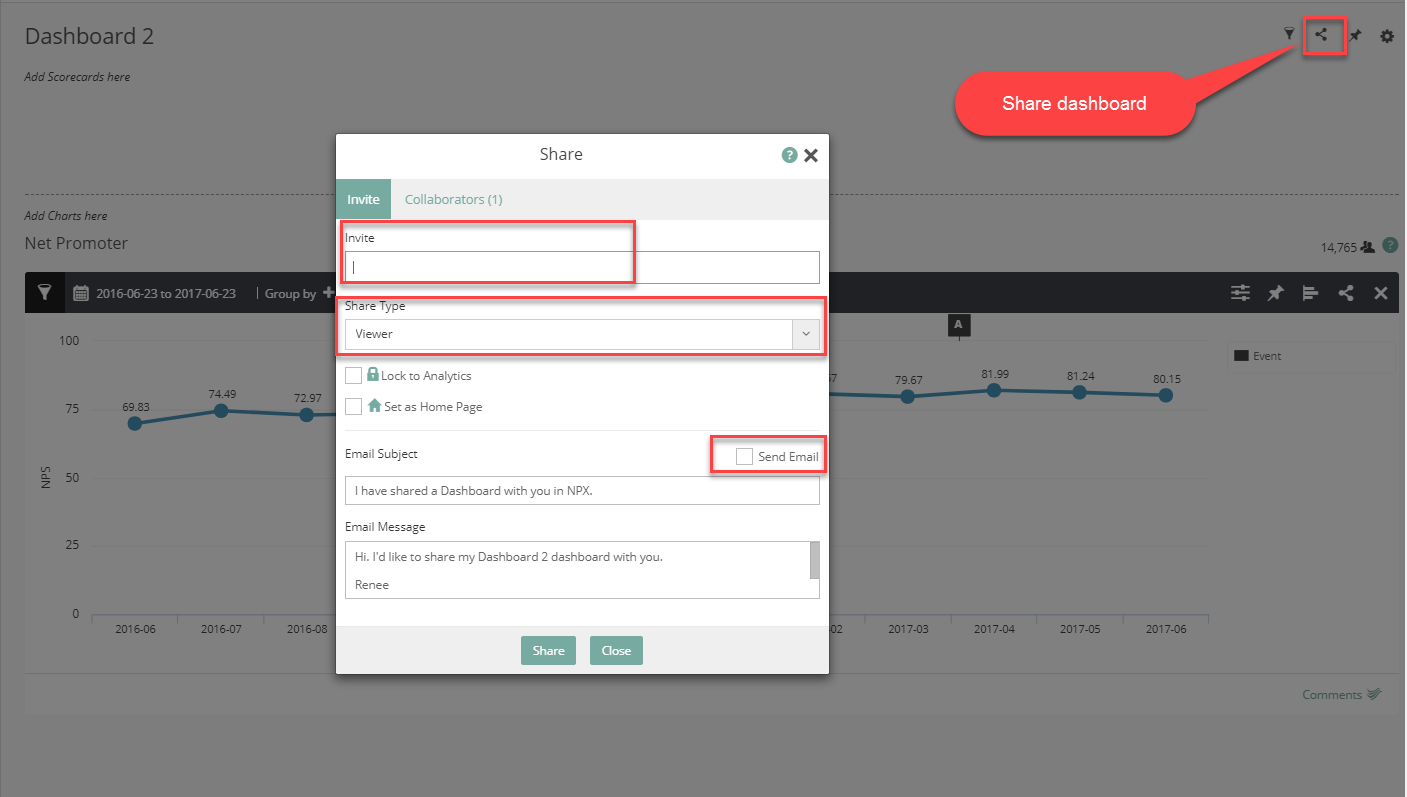
If you want to see which users this dashboard is already shared with, you can click the share icon to open the Share window, then click Collaborators.
Comments
0 comments
Please sign in to leave a comment.