
You can assign default home pages to users in your application. That user will land on this page as long as they have not chosen a different home page for themselves.A home page is the first page that appears each time a user logs into the system.
If the user has not already chosen a home page for themselves, they will see this page the next time they log in, along with a notification that you have changed their default home page. If they have already chosen a home page, they will receive a message that you suggest they set this dashboard as their home page.
To create a dashboard with scorecards to be used as a homepage, click here for information on creating and building dashboards.
The easiest way to assign a homepage is to open the dashboard and share it as a home page.
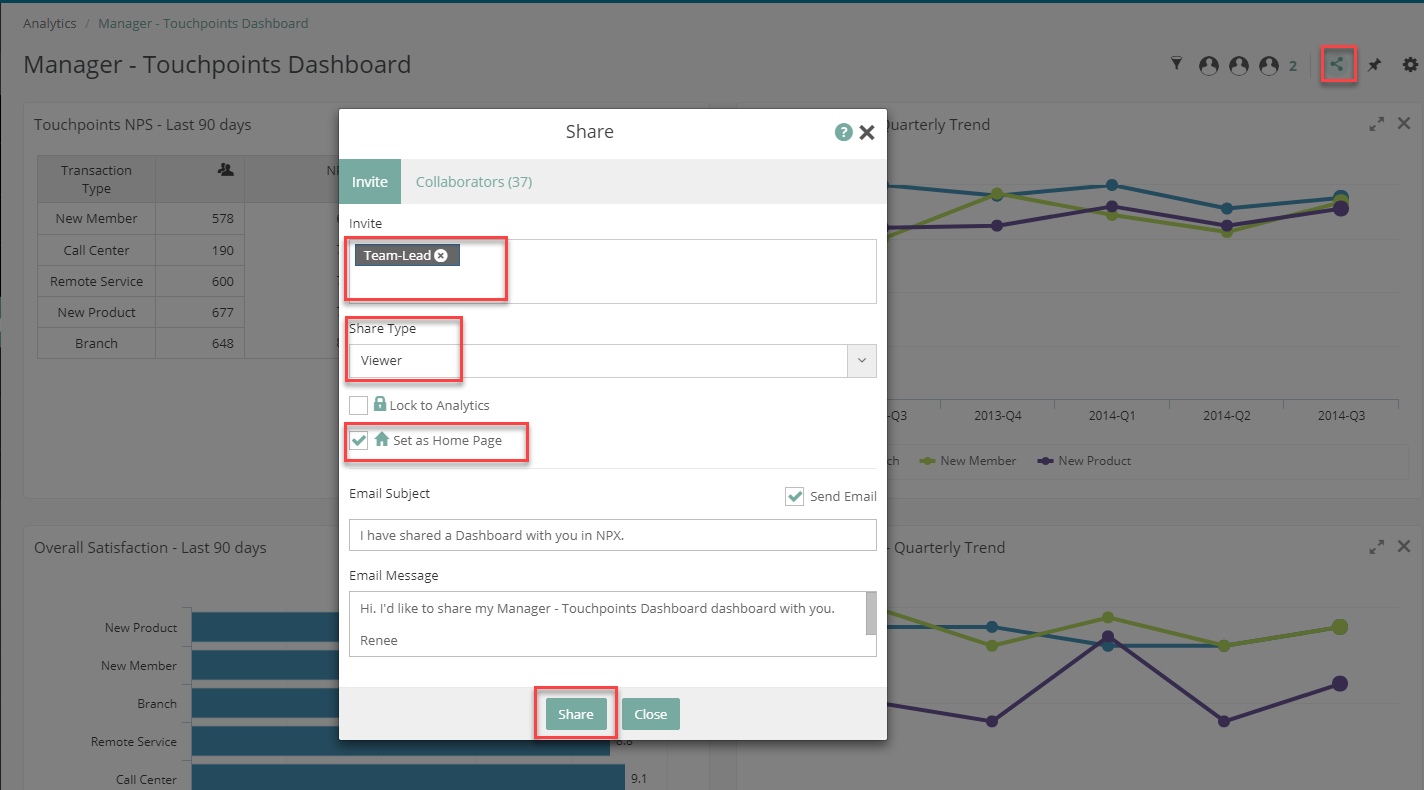
Share a dashboard as a home page:
- Click the share icon in the top right. This will open the Share window.
- Under Invite, enter the names of the users or roles that you want to share this dashboard with.
- Check Set as Home Page.
- Optionally add an email message explaining that they have a new dashboard.
- Click Share.
From the Users Page
You can assign a default home page to a specific user. From the Users page you can choose a dashboard that the user already has access to, including the My Actions page.
To assign a home page:
- Go to the Users page and click on the user account you want to edit.
- Click the Settings tab.
- Find the Set as Home Page field. If it is not editable you will see the page the user has already selected as their home page. If it is editable you can choose a default home page from a list of existing dashboards that the user has access to.
- When you’re finished, click Save.
You can quickly review users’ home pages in the Home Page column of the Users page. This column displays the name of the home page for each user, including any page the user has selected for themselves.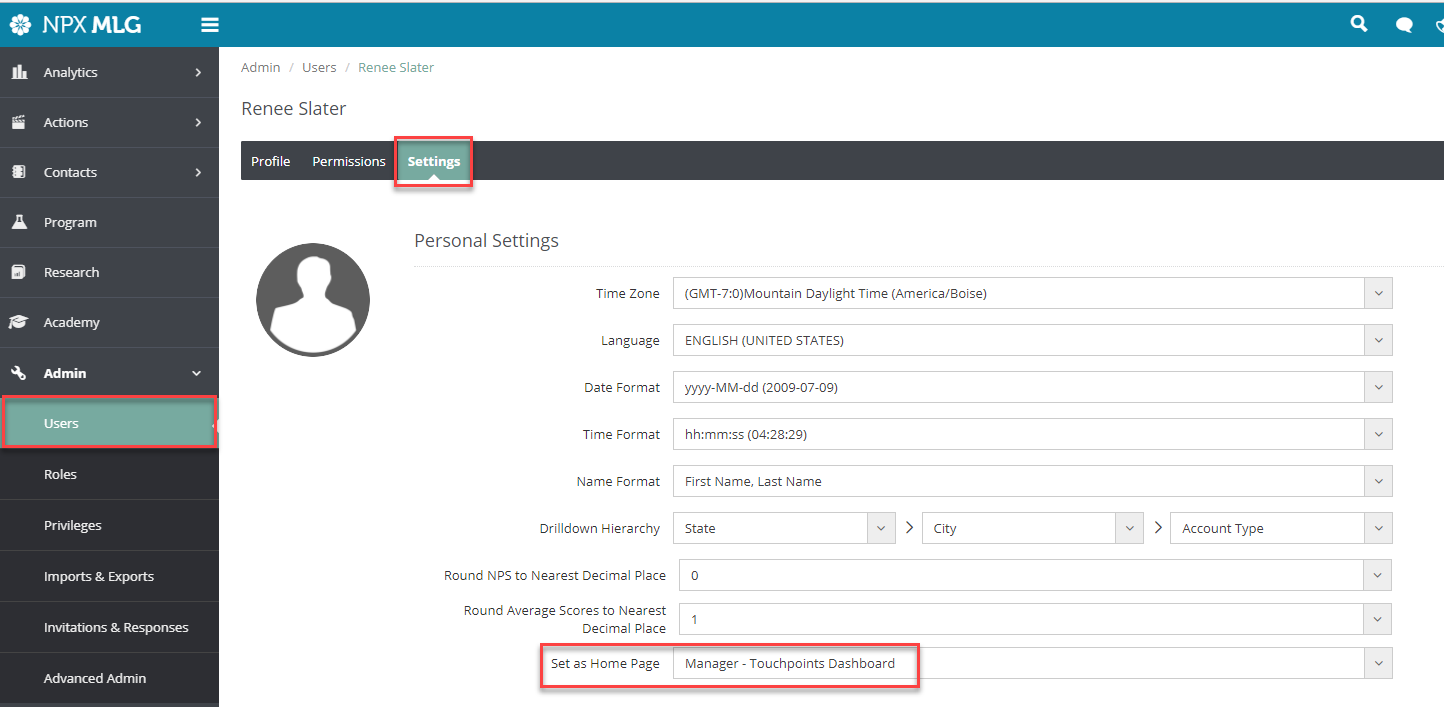
From the Roles Page
You can assign default home pages to all users in a role. Any users who are assigned that role will then have that default home page as long as they haven’t chosen a home page for themselves.
To assign a home page to a role:
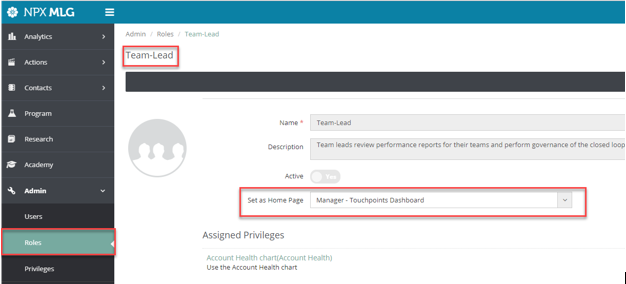
- Go to the Roles from the left navigation menu.
- Search for the role you want to work on and click to edit it.
- Find the Set as Home Page field and choose a default home page from a list of existing dashboards.
- When you’re finished, click Save.
Comments
0 comments
Please sign in to leave a comment.