
We offer comment tagging so that you can report on different 'comment tag themes' that your members are commenting about. This will help you know what and how often certain information is mentioned in member comments.
How to tag survey comments
You can manually add a tag with sentiment to each comment. This allows you to track the themes from your member comments.
To manually tag a comment:
1. Log into your Satmetrix Report Site.
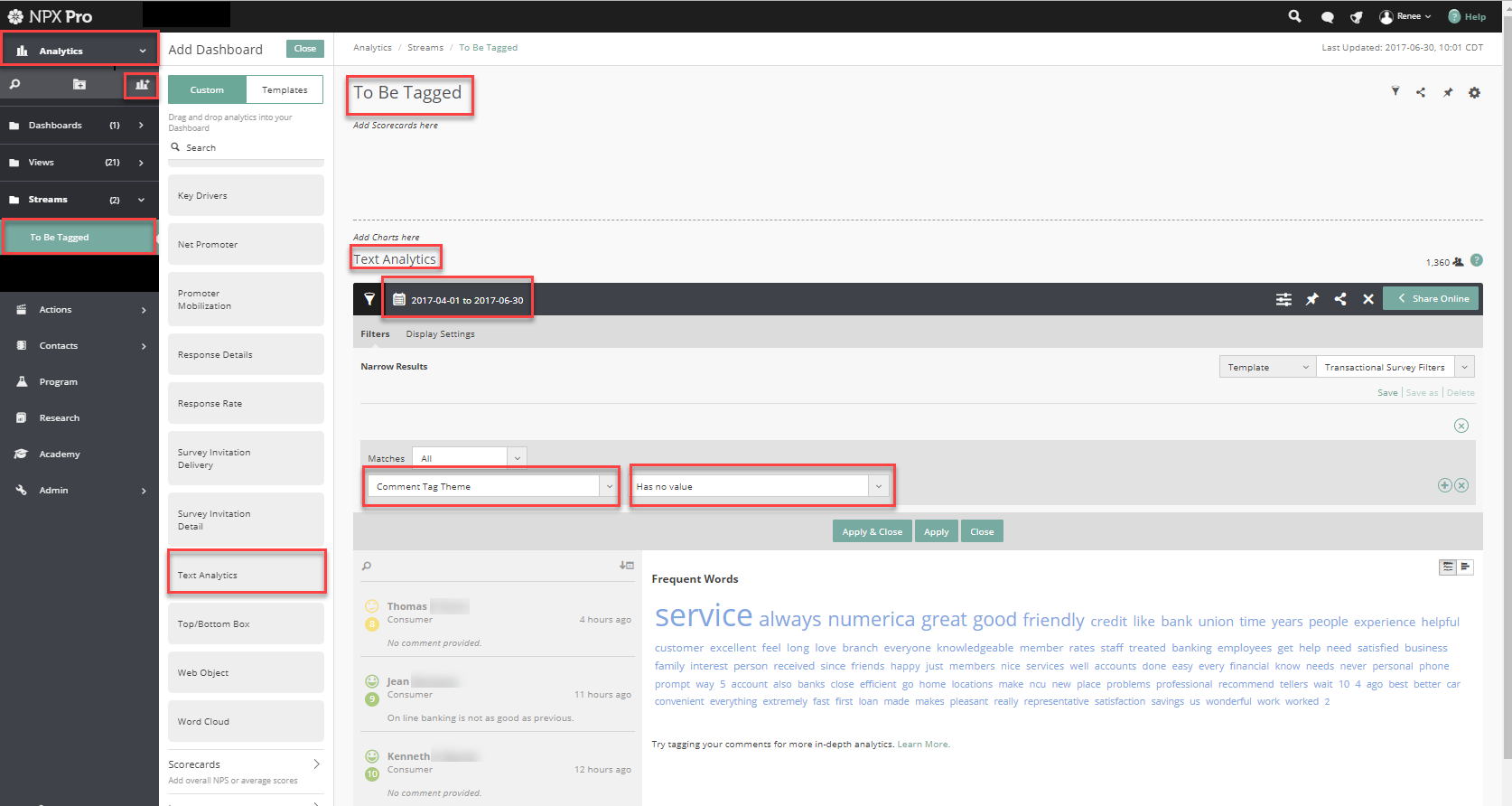
2. Open the Analytics menu.
3. Click on the Add Dashboard icon
4. Select the Text Analytics chart. You can name it what you want like "To Be Tagged"
5. Select your date range, such as Last 30 Days, or Last 90 Days
6. Filter the chart for Comment Tag Theme > Has No Value.
6. Click on a member’s name to open their Survey Response screen.
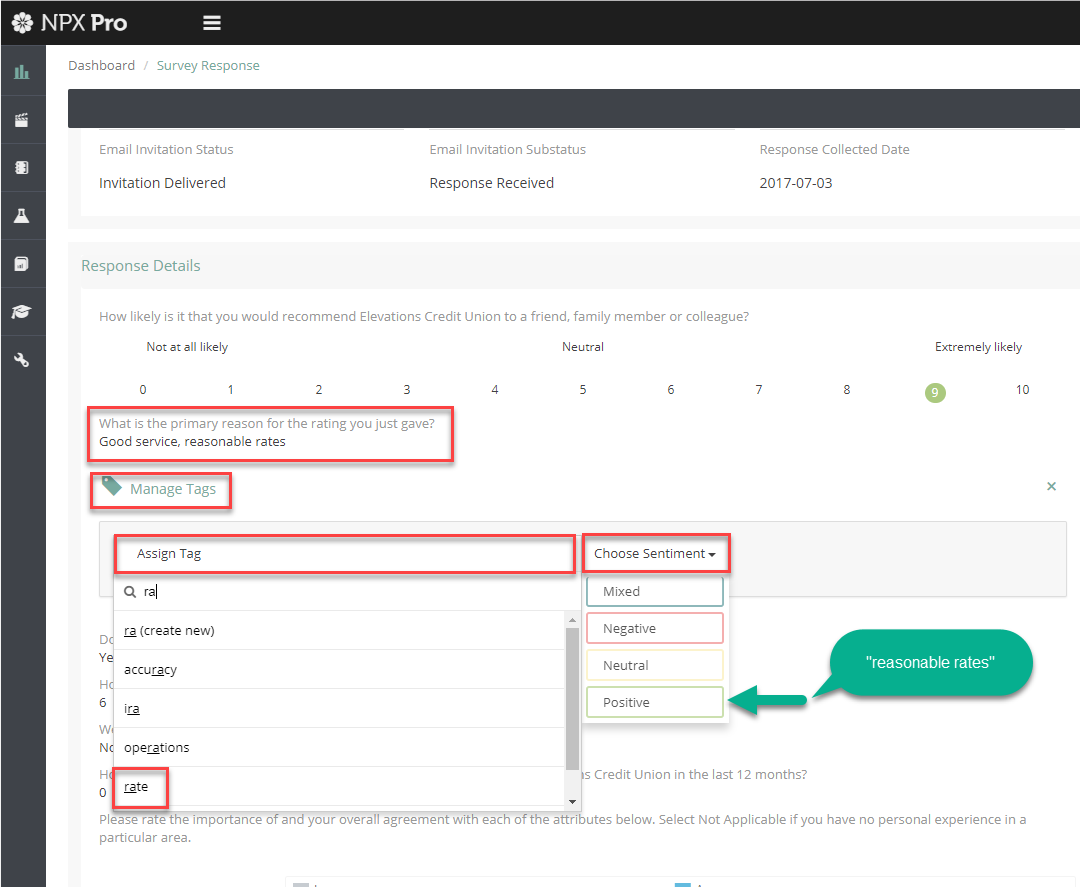
7. Find the comment. Below it, click on the green tag icon labeled Manage Tags. This will open a panel where you can add tags and assign sentiment to each comment in the response.
8. Click Assign Tag and choose an existing tag from the dropdown menu, or you can start typing the name of the tag to pull that tag to the top of the list. (Make sure to click the tag name in the dropdown list to actually add the tag so you don't inadvertently add what you typed in the search bar which is sometimes a partial name).
Choose the tags based what is mentioned in the comments. For example, this comment is primarily about ‘rates’ and ‘service’.
9. Click Choose Sentiment to assign a sentiment to the tag.
Your system tracks four different sentiments:
- Positive
- Negative
- Neutral
- Mixed – Use when a comment is both positive and negative about the same theme.
For example, “Your rates are usually good. But, lately they’re terrible.” The tag for this comment would be rate. But, the sentiment is mixed because the member feels both positive and negative about rates.
9. Click the plus sign to attach the tag to the comment.

10. Continue to assign tags and sentiment until you’ve captured all of the themes from the comment/s. You may have multiple tags for one sentence or comment.
11. Scroll back up to the top of the survey and click Save, then Close, OR click the right arrow to move onto the next survey to be tagged.
To delete a tag from a comment:
1. Open the survey details for the response.
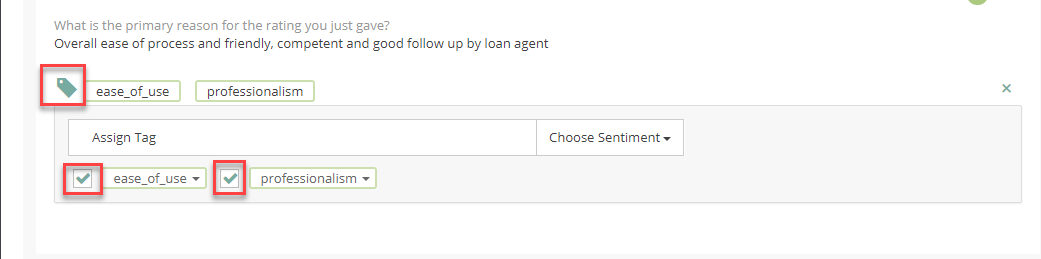
2. Click the green tag icon to open up the tags.
3. Uncheck the box next to the tag that you want to delete.
To delete a tag from your list of tags:
Only Satmetrix can delete a tag from your list of tags.
Please reach out to your credit union's Program Manager or to the MLG Support Team to make this update.
Comments
0 comments
Article is closed for comments.